#1 B2B Sales Portal for Manufacturers & Distributors

Quotes & Estimates

Send a quote your customer can accept in one click

Build a quote from live pricing and inventory, send it, and your customer accepts online — no account, no login, no back-and-forth PDF emails. The accepted quote flows straight into an order.
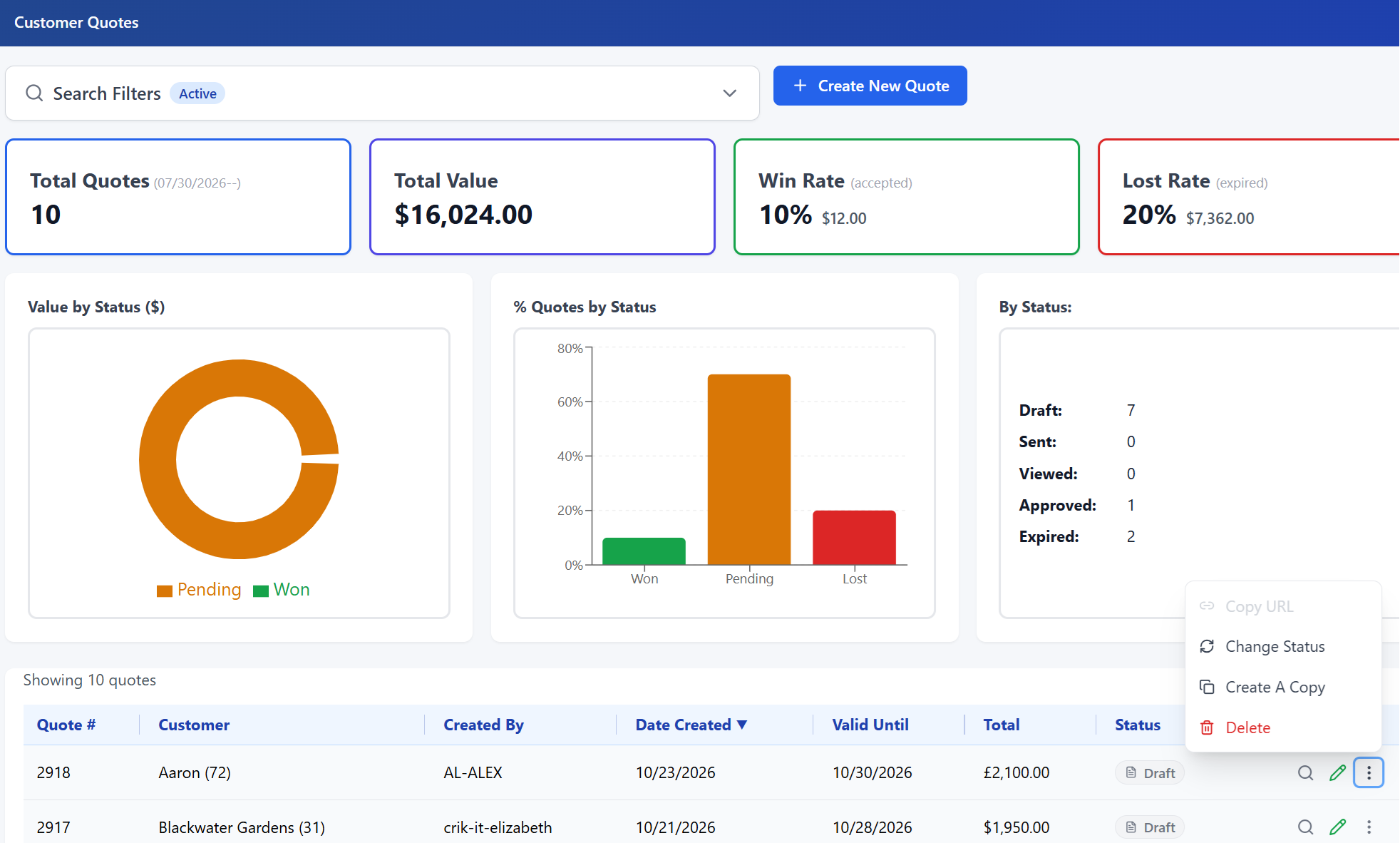
CrikSales quote management screen

From quote to order, without leaving the portal

Every step below runs on the same customer, pricing, and inventory data your team already works with.

1

Build the quote

Your rep builds the quote from live pricing and inventory, so what's quoted is what's actually available — not a stale price sheet.

2

Send it

Send the quote as a link, or generate a PDF, straight to your customer's inbox.

3

Customer accepts online

Your customer opens the link and accepts — no account, no login required. Status is tracked on a timeline the whole way.

4

It becomes an order

An accepted quote flows straight into an order — nobody re-keys what the customer already agreed to.

See where every quote stands

Dedicated reporting shows the health of your whole quote pipeline, not just one deal at a time.

Quote Status Breakdown
Quote Item Status
Quotes Entered in Portal
Customer Acceptance & Pipeline

Frequently asked questions

No. Customers open the quote from a link you send, review it, and accept online without logging in or creating an account.

An accepted quote flows straight into an order, so your team doesn't re-key what the customer already agreed to.

Yes. Quotes are built from the same live pricing and inventory your reps and customers already see in the portal, so what's quoted matches what's actually available.

Every quote has a status timeline, and dedicated reports (Quote Status Breakdown, Quote Item Status, Quotes Entered, Customer Acceptance & Pipeline) show where quotes stand across your whole book.

A CrikSales quote is a live, trackable link that comes with a PDF. The customer opens a branded page with your logo, line items, and expiry date, and accepts it with their name and email. You see when it was sent, viewed, and approved, and the system sends reminders for you.

Yes. If your company has an alternate quote form, you choose it before sending. The emailed PDF uses that form, and the Send dialog shows which form is going out.

Yes. Each quote has a status: Sent, Viewed, Approved, Expired, Cancelled, Superseded, or Delivery Failed. Email tracking also shows whether the email was delivered, opened, or clicked, or bounced.

Quotes that need attention appear on the Action Board. When you log a follow-up, the quote leaves the board and returns at the next expiry milestone: 7 days out, 3 days out, or the expiry day. Follow-up notes stay internal and never appear on the customer's quote.

Each link carries a unique, unguessable token and expires on its own date. Resending replaces the old link, and the public page limits repeated requests.

Yes. Enter multiple email addresses separated by commas or semicolons, for example the buyer and purchasing.

Yes. You can turn on three automatic reminders: 3 days after sending, 7 days after sending, and 3 days before expiry. Reminders that would fall after the expiry date are turned off automatically.

You set the expiry anywhere from 1 to 365 days when you send. The Send dialog shows the exact expiry date before you confirm.

Edit it and resend. The new link replaces the old one, so the customer can't act on outdated pricing.

Ready to stop chasing PDF quotes?

Start free trial Schedule a demo