CrikSales Accepts Stripe Payments
By Varma D. · Published · Updated · 4 min read
If you'd like to offer your customers a quick and easy way to review and pay invoices, CrikSales has you covered. Our B2B portal now integrates with Stripe, so you can get paid by credit card or ACH while giving your customers a premium user experience.
Key takeaways
- Connect in minutes: link your Stripe account from Tools in CrikSales, then choose credit card, ACH, or both.
- Control per customer: decide who can pay invoices, which methods they can use, and whether payment at checkout is optional, required, or off.
- Pay from the portal: customers see their balance, open unpaid invoices, and pay through the Stripe payment window.
- Track everything: the Payments tab shows the status of every initiated payment across all customers.
Why Stripe?
Stripe is a widely trusted payment platform that handles card and bank payments securely, so your customers can pay with confidence and you do not have to build or maintain payment processing yourself. For B2B sellers, that means:
- Get paid faster. Customers pay an invoice the moment they see it, instead of waiting on a check or a bank transfer you have to chase.
- Card and ACH in one place. Offer instant credit card payments, or ACH for larger invoices, through the same Stripe account.
- A better customer experience. Paying is a couple of clicks inside the portal your customers already use to order.
- Less manual work. Payment status is tracked for you, so there is less follow-up and less reconciling by hand.
Step 1: Connect Stripe to CrikSales
Start by connecting to Stripe from your CrikSales account:
- Go to Tools → Stripe Payment Configuration.
- Click Connect with Stripe and log in to your Stripe account.
- Once connected, configure your general payment settings. Choose to accept credit card payments, ACH payments, or both, and choose the currency. The currency you select applies to all customer payments.
- If you turn on ACH, you can assess your account's readiness to receive ACH payments.
- Your connected Stripe account details and options appear under Stripe account management.
- Click Save Payment Settings to save your configuration.
Step 2: Configure payments for each customer
Next, enable payments for the customers you want to collect from. You can do this from Customer User Config under Tools, or from Customer Settings on each customer's details page. From Customer User Config:
- Click Configure next to each customer you want to receive payments from, then click Payment Configuration.
- Check Yes, this customer can pay invoices in the CrikSales portal, and choose whether to allow payments by ACH, credit card, or both.
- Choose how the customer can pay when submitting an order (see below).
- Click Save Settings, then repeat for every applicable customer.
| Setting | What it does |
|---|---|
| This customer may pay for an order when submitting it, but is not required to | Payment at checkout is optional. |
| This customer must pay for an order when submitting it | Payment at checkout is required. |
| This customer cannot pay for an order when submitting it (default) | The customer pays invoices only. |
This post covers invoice payments. For details on customers paying at checkout, see the CrikSales help document.
Step 3: Your customers pay in the portal
When customers log in to their B2B portal, they see the balance they currently owe you.
- Clicking the balance takes them to their unpaid invoices in the Invoices tab.
- Under Pay Balance, they click the Pay link, which opens the Stripe payment window.
- They complete the payment. Credit card payments are instantaneous. ACH payments are received within the standard ACH payment time frame.
- Customers can follow their payment status in the Invoices tab under Pay Balance.
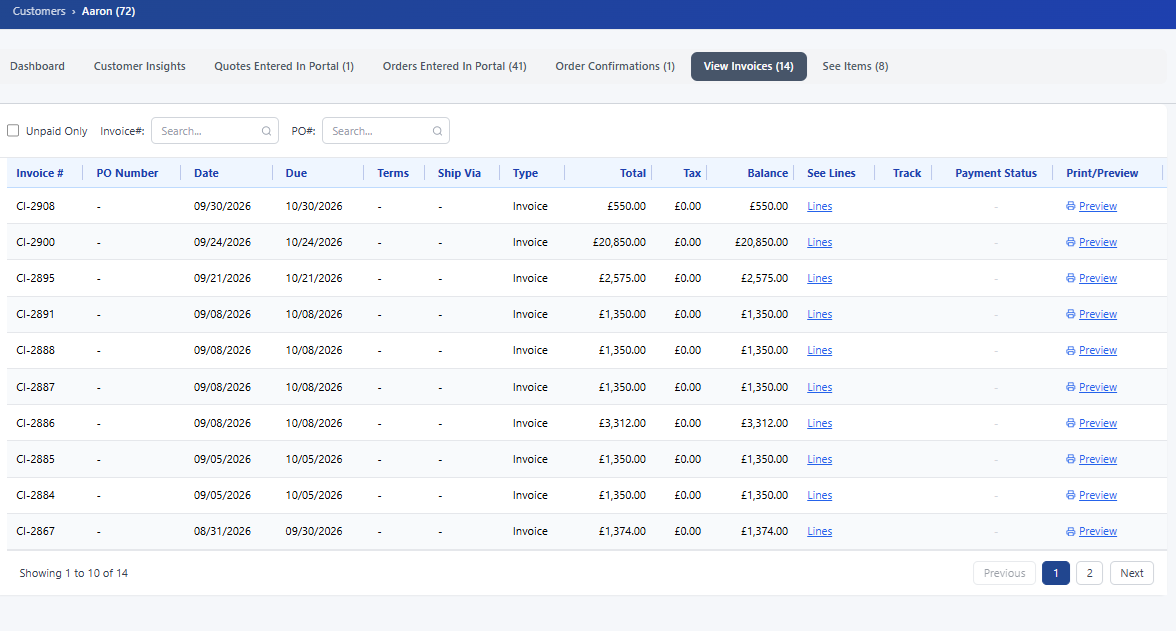
Step 4: Track payments from your Payments tab
You see invoice payment status in your own portal under the Payments tab. It shows the payment status of any invoice for which a payment was initiated, across all customers, whether or not the payment process was completed. For ACH payments, bank payment clearing is displayed until you have received the payment.
Frequently asked questions
How do I connect Stripe to CrikSales?
Go to Tools, then Stripe Payment Configuration, click Connect with Stripe, and log in to your Stripe account. Then choose credit card and/or ACH payments, select your currency, and click Save Payment Settings.
Can I accept both credit card and ACH payments?
Yes. In the general payment settings you can accept credit card payments, ACH payments, or both. If you turn on ACH, you can also assess whether your Stripe account is ready to receive ACH payments.
Does the currency apply to every customer?
Yes. The currency you select in the payment settings applies to all customer payments.
Can I choose which customers can pay online?
Yes. Under Customer User Config in Tools, or Customer Settings on each customer's details page, open Payment Configuration for a customer and choose whether they can pay invoices in the portal, and whether they may pay by ACH, credit card, or both.
Can customers pay when they submit an order?
Yes. You can make payment at checkout optional, require it, or leave the default so the customer can only pay invoices.
How quickly do I receive payment?
Credit card payments are instantaneous. ACH payments are received within the standard ACH payment time frame, and the Payments tab shows bank payment clearing until the payment has been received.
Where can I see the status of invoice payments?
In your own portal, the Payments tab shows the payment status of any invoice for which a payment was initiated, across all customers, whether or not the payment was completed. Customers see their own payment status in the Invoices tab under Pay Balance.
Want to see it in action?
We would love to give you a demo. Schedule a call with us, or start your free trial. You can also learn more about CrikSales payments and invoicing and the CrikSales B2B portal.
For more articles like this, visit the CrikSales blog.
Related articles
Related features: Invoice & payments